


How to Access the Claude Reflect Dashboard
Getting to Reflect takes less than a minute.
- Open your browser and go to claude.ai
- Click your name and profile photo in the interface
- Click Settings
- Select Reflect
Claude will generate your first report automatically. By default, it shows the last month of activity. You can switch the view to the last three, six, or twelve months using the toggle at the top of the dashboard.
One thing worth knowing upfront: the Time Spent tab currently shows “coming soon.” Anthropic didn’t have an internal system for measuring session time when Reflect was built, so that feature isn’t live yet. You’ll still get a useful summary of your conversations and usage patterns — just not a raw hour count.
How to Set Break Reminders
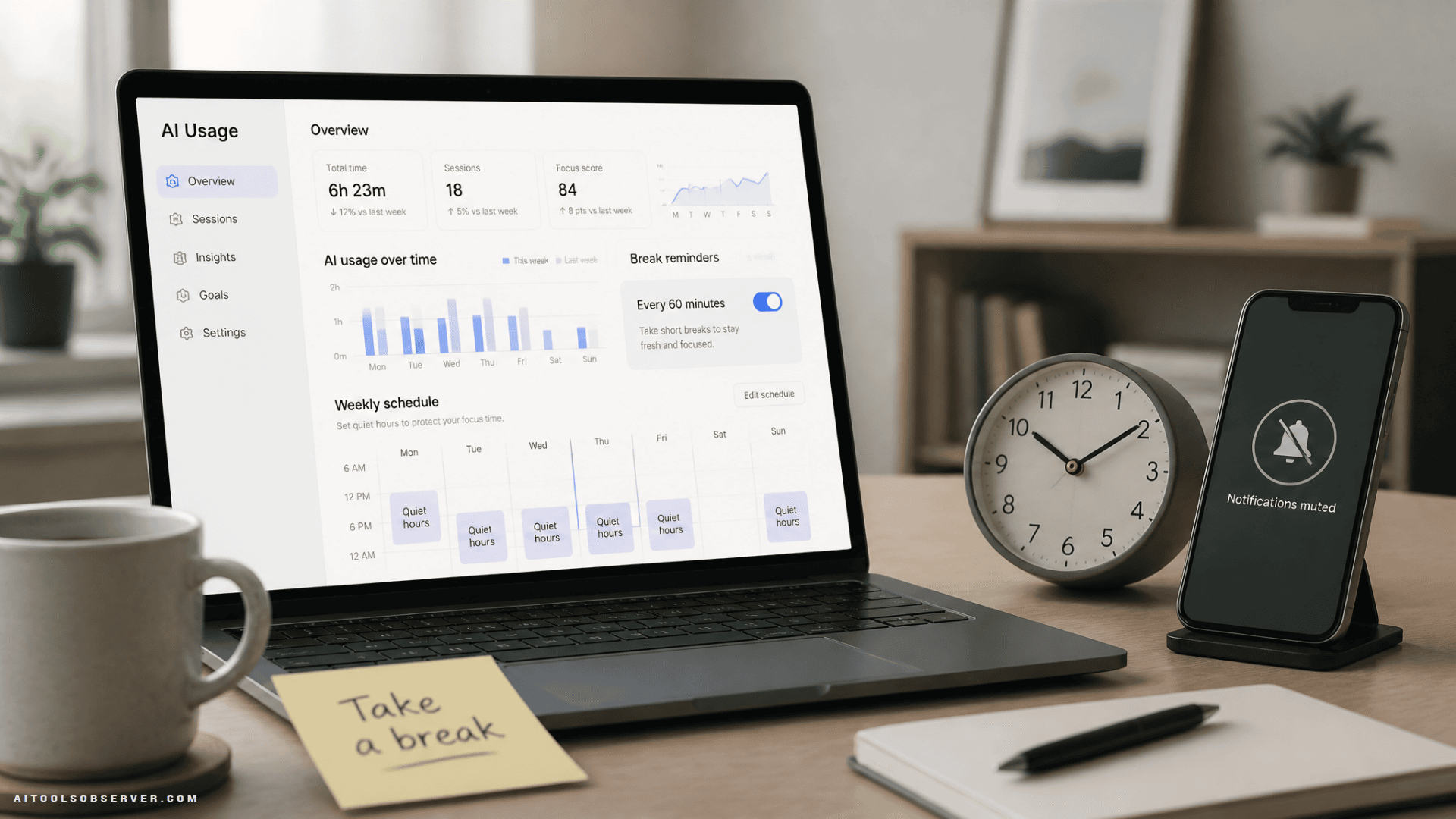
Break reminders are the simplest tool in the Reflect dashboard. Once enabled, Claude will send you a nudge after you’ve been using it for a set amount of time.
You can choose from these intervals:
- Every 15 minutes
- Every 30 minutes
- Every 45 minutes
- Every few hours
The reminder shows up as an in-chat prompt — it doesn’t lock you out or force you to stop. You can dismiss it and keep going. That’s an important tradeoff to understand: Reflect is designed to build awareness, not enforce hard limits.
To adjust your break reminder settings after the initial setup, go to the Time and Focus section of the Claude settings menu.
How to Set Quiet Hours
Quiet hours are more structured than break reminders. They’re designed to block Claude access during specific times of day — useful for protecting evenings, mornings, or focused work blocks.
What makes this feature flexible is that you can set different quiet hours for each day of the week independently. For example:
- Monday: Block Claude from 5PM to 8PM
- Saturday: Block Claude from 12PM to 4PM
- Sunday: No restrictions at all
This kind of granular control is more useful than a blanket daily schedule. Your relationship with AI tools probably isn’t the same on a Tuesday afternoon as it is on a Sunday morning.
Like break reminders, quiet hours rely on your own willingness to follow through. You can still dismiss the roadblock if you choose to. The tool works best when you treat the limits you set as real commitments.
How to Use the AI Fluency Section
Toward the bottom of the Reflect dashboard, there’s an AI Fluency section that’s easy to overlook but genuinely worth your time.
This section analyzes your usage patterns and generates personalized recommendations for using Claude more effectively. One of the most common suggestions it surfaces: if you frequently re-establish the same context at the start of conversations, Claude will recommend you use Projects to group related prompts together.
Why Claude Projects Matters Here
Projects let you store persistent context so you don’t have to repeat yourself every session. If you’re regularly working on the same brand, client, or topic, setting up a Project means Claude already knows the background before you type a word.
The AI Fluency tips are generated based on your actual behavior, not generic advice. That makes them more actionable than most onboarding checklists. It’s worth reading through them and trying at least one or two.
A Few Practical Notes Before You Start
Reflect works best as a habit tool, not a hard blocker. If you need strict enforcement, this isn’t that. But if you want to build more intentional AI habits, the combination of break reminders and quiet hours gives you a solid structure to work with.
Start with quiet hours first. Most people find it easier to protect specific time blocks — like evenings or early mornings — than to respond to mid-session nudges. Get the quiet hours right, then layer in break reminders.
Check the AI Fluency section after a few weeks. The recommendations get more relevant once Claude has more usage data to analyze. Don’t skip it on your first visit, but revisit it after you’ve built up a fuller usage history.


















Comments (0) No comments yet
Want to join this discussion? Login or Register.
No comments yet. Be the first to share your thoughts!