


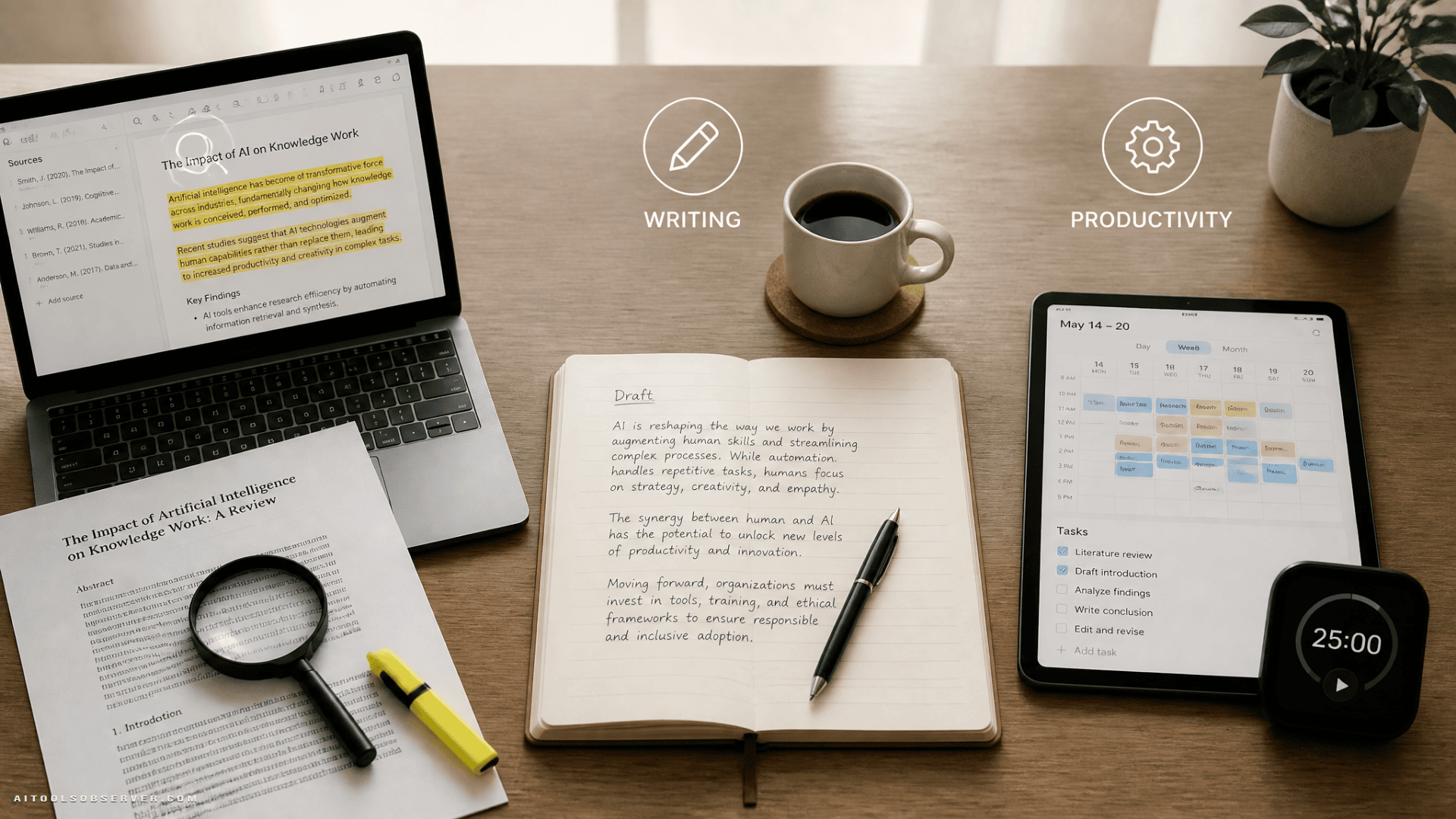
Start with three questions
Before picking a tool, answer these first:
- Which task actually eats your time?
- How much accuracy do you need?
- What are you already using, and what annoys you about it?
Those three questions matter more than feature lists. Reading papers, drafting emails, summarising meetings, and organising projects may all look like “productivity,” but they are different jobs.
A brainstorming tool can be loose and fast. A report tool cannot. If the output will affect grades, clients, or decisions, accuracy matters more than convenience.
Research tools: fast help, sharp edges
Research is where AI can save the most time and cause the most trouble. The good tools do two things well: they help you find relevant material quickly, and they show where their claims came from.
If a tool gives you polished answers without clear sourcing, treat it like a confident intern with a nice voice.
General-purpose research assistants
Claude, ChatGPT, and Gemini are the main general-purpose options for broad research. Their deep-research style workflows are useful when you need to get up to speed on an unfamiliar topic, compare viewpoints, or produce a first-pass briefing.
Their strengths are slightly different:
- Claude tends to be valued for careful reading and nuanced writing
- ChatGPT is often chosen for breadth of features and workflow flexibility
- Gemini is especially convenient for people already living inside Google’s ecosystem
In practice, many people pick one as their default assistant and occasionally sanity-check important answers with a second one. That is a healthy habit, not paranoia.
Perplexity is the more search-shaped option. It is useful for factual questions, current topics, and product research because it keeps the source trail visible. If your normal method is “search, open ten tabs, forget why you opened tab seven,” this can be a cleaner alternative.
Academic and document research tools
For scholarly work, general-purpose assistants are not always enough. This is where specialist tools make more sense.
Elicit and Consensus are built for academic research. They help surface relevant literature, extract findings, and compare what studies appear to say. If your question looks like “does X affect Y?”, these tools are often a better starting point than a blank chatbot box.
Semantic Scholar and Scite are useful when the job shifts from finding papers to tracing claims. That matters because a flashy finding is less impressive if later work challenged it. Following how an idea holds up over time is one of the more practical uses of AI in research.
NotebookLM takes a different approach. Instead of searching the world, it works from the materials you give it, such as PDFs, notes, web pages, and transcripts. It answers questions from that set and cites the passages it used, which makes it especially helpful for students, analysts, and anyone trying to make sense of dense source material without inviting extra guesswork.
Because it stays inside your documents, it is generally less likely to wander off into invented details. That alone makes it worth a look.
The rule that does not change
Always verify important claims.
AI can misread a paper, attach a quote to the wrong source, or summarise something that is not actually there. If a point matters, open the cited source and check it yourself.
The safest mental model is simple: AI is a fast research assistant, not a final authority.
Writing tools: drafting is not polishing
A common mistake is expecting one writing tool to do every writing job. Most tools are better at either generating text or improving text you already wrote. Treating those as separate tasks makes the whole category easier to evaluate.
For drafting and thinking
Claude, ChatGPT, and Gemini are the default drafting tools for many people. They can help with brainstorming, outlines, first drafts, rewrites for a specific audience, and cutting down bloated paragraphs that clearly enjoyed hearing themselves talk.
The quality of the output depends heavily on your input. “Write a post about budgeting” will usually produce beige internet paste. A tighter prompt with audience, goal, tone, and format tends to work much better.
A practical move is to give the tool a sample of your own writing and ask it to match the voice. That usually gets you closer to something usable than asking for “professional but friendly,” which often produces the verbal equivalent of office carpet.
Also: do not marry the first draft. Ask for alternatives, cuts, rewrites, and sharper versions. These tools are often more useful as revision partners than as one-shot ghostwriters.
For polishing and tone
Grammarly remains a common choice for catching errors, smoothing phrasing, and adjusting tone across emails, docs, and web copy. DeepL Write is another strong option, especially if you work across multiple languages or want clean rephrasing.
These tools are usually most helpful at the end of the process. They are quality control, not a substitute for your thinking. If you use them too early, they may help you polish sentences you should have deleted.
For writing inside your existing workflow
Built-in assistants matter more than people sometimes admit. Notion AI, Gemini in Google Docs, and Copilot in Microsoft Word may not always be the most powerful tools in isolation, but convenience is a feature.
If you spend most of your day in one workspace, having drafting and summarising available there can beat switching across apps. The best tool is not always the smartest one. Sometimes it is the one you will actually use.
Productivity tools: the useful ones remove friction
This category is crowded. A lot of tools promise clarity and deliver one more dashboard.
The ones worth paying attention to usually remove repetitive work: note-taking, rescheduling, summarising, routing information, and updating systems that nobody enjoys updating manually.
Meetings and notes
Meeting note tools are among the most immediately useful AI products for teams.
Otter.ai and Fireflies.ai are suited to teams that want searchable transcripts, summaries, and action items from calls. They typically show up as visible bots in meetings, which may be fine or awkward depending on your culture and clients.
Granola takes a quieter approach by working with audio from your device and combining transcripts with your own notes. If your goal is less “company archive” and more “help me leave this meeting with a usable record,” that model may feel more natural.
Task and schedule management
Motion and Reclaim.ai focus on the problem of calendar chaos. They rearrange tasks around meetings and shifting availability, which can help if your day gets broken apart constantly.
These tools make the most sense for people with genuinely volatile schedules. If your calendar is already stable and your current planning method works, they may be overkill. If every week feels like an airport departure board, they may be a relief.
Automation
Zapier and Make sit in a different lane: workflow automation. They connect apps and let actions trigger other actions, now with AI steps in the middle for summarising, classifying, or drafting.
That makes them useful for repetitive, structured processes. A form submission can trigger a personalised reply, log details somewhere else, and notify your team without anyone playing copy-paste clerk.
The tradeoff is setup. Automation pays off after the wiring is done, not before.
All-in-one workspaces
Tools like Notion aim to combine notes, databases, project tracking, and AI search in one place. The attraction is obvious: instead of hunting through folders and messages, you can ask a question about your own materials and pull an answer from what you have already stored.
The catch is also obvious: the system is only as good as the information inside it. An AI workspace cannot organise what your team never wrote down.
Which tool fits which job?
If you want the short version, this is a practical way to think about the stack:
- For broad research and drafting: Claude, ChatGPT, or Gemini
- For source-visible web research: Perplexity
- For academic literature review: Elicit or Consensus
- For working from your own documents: NotebookLM
- For writing cleanup: Grammarly or DeepL Write
- For meeting summaries: Otter.ai, Fireflies.ai, or Granola
- For calendar reshuffling: Motion or Reclaim.ai
- For automating repetitive workflows: Zapier or Make
- For in-app convenience: Notion AI, Gemini in Google Docs, or Copilot in Word
That does not mean you need all of them. Usually you do not.
A sensible setup for most people
For many users, the most practical approach is:
- one general-purpose assistant
- one specialist research tool if research matters often
- one productivity tool for your biggest recurring annoyance
- one polishing tool for final review
That covers a lot without turning your workflow into a tool museum.
If you already use a general assistant daily, the next tool should solve a specific bottleneck. Not “it seems interesting.” More like: “I lose five hours a week in meetings,” or “I spend too long comparing papers,” or “I keep rewriting the same client emails.”
What to verify before you rely on any tool
Before committing, check four things:
- Does it cite sources clearly when facts matter?
- Does it fit your current workflow, or create extra steps?
- Does it save time after the learning curve?
- Does the output still need heavy cleanup?
Features and pricing change often, so current plans are worth checking. The more stable question is whether the tool’s basic strength matches your real job.
A research assistant that cannot be trusted with sources is risky. A writing tool that speeds up drafts but creates generic sludge may not help. A productivity tool that requires constant tending is just another pet.
The useful takeaway
Pick one painful task. Test one tool on that task. Keep it only if it saves time or improves the result.
That is the whole trick.
The smartest AI setup is rarely the biggest one. It is the one that quietly handles the dull work so you can spend more time on judgment, analysis, and actual thinking—the parts machines still love to imitate and humans still have to own.









Comments (0) No comments yet
Want to join this discussion? Login or Register.
No comments yet. Be the first to share your thoughts!