


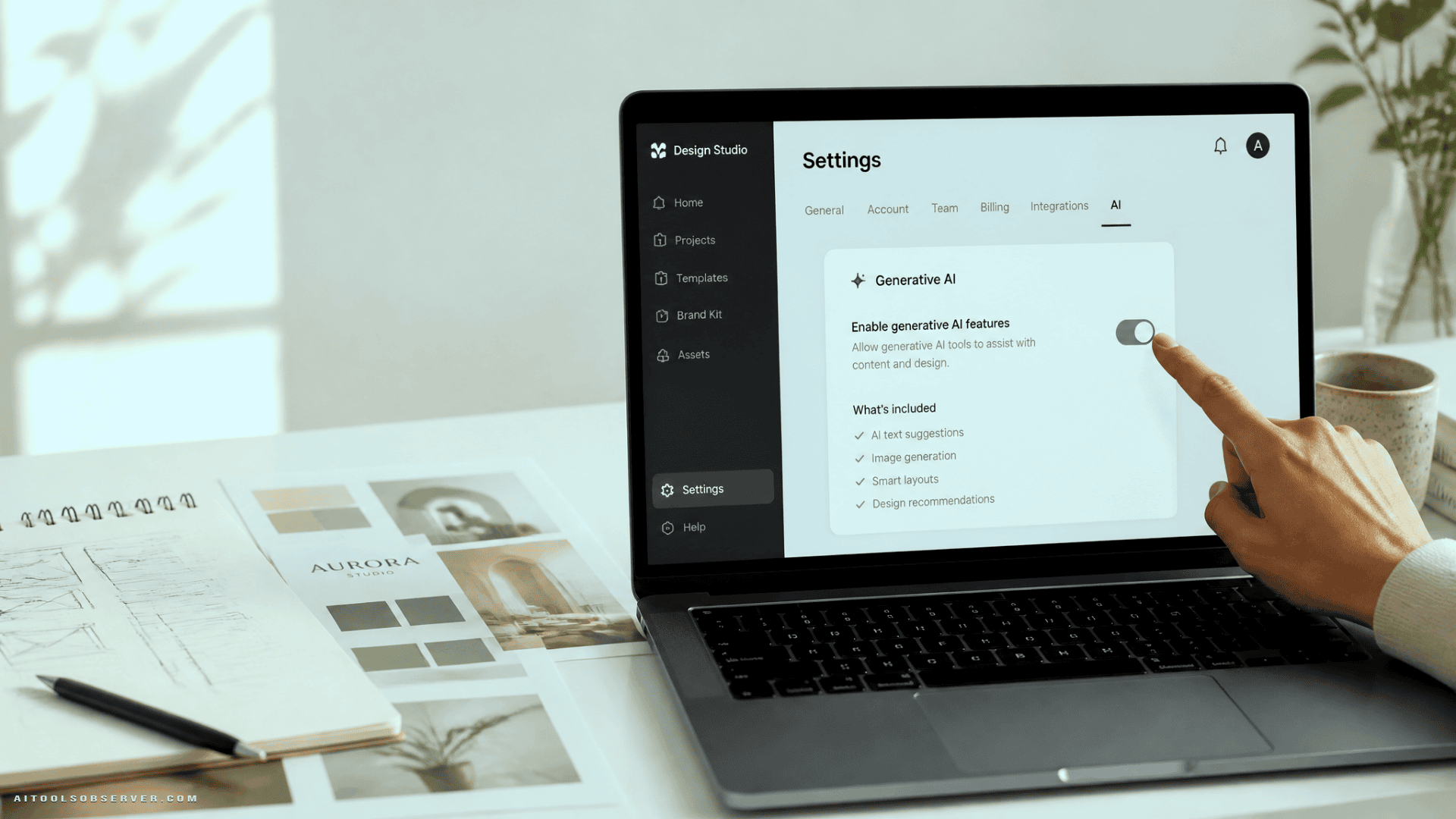
What These Controls Actually Do
It helps to understand the distinction between the two settings before you go looking for them.
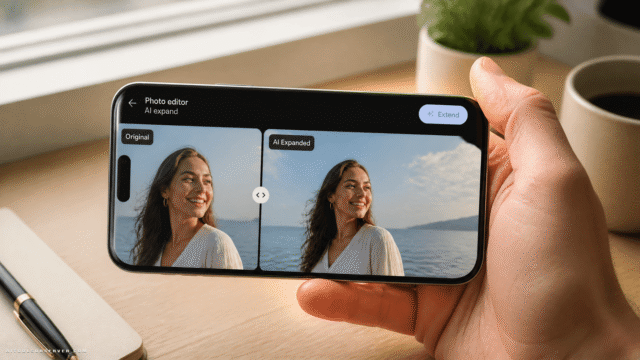
The generative AI toggle disables features that create or transform content using AI models. This includes Magic Write, Magic Design, Magic Layers, Magic Edit, Dream Lab, Canva Code, and AI Shapes, among others. Turning this off hides these tools from your interface.
The AI content filter affects what you see when browsing Canva’s library of templates, graphics, and design elements. Enabling it means human-created content surfaces first in search results. Canva notes that AI-generated content makes up a “small portion” of its library, and that any design using such elements carries an AI label in its metadata.
One important nuance: not every AI-adjacent feature gets disabled by the toggle. Canva has stated that tools like the Grab tool — which lets you select and reposition objects within an image without generating new content — will remain active. The reasoning is that these tools “make everyday tasks faster without generating anything new.” Whether you agree with that distinction is a matter of personal preference, but it is worth knowing before you expect a fully AI-free environment.
How to Turn Off Generative AI Features
The setting is located in your account permissions, not in any individual tool or editor.
- Click your Profile icon in the top-right corner of Canva.
- Go to Settings.
- Select Permission.
- Toggle off Enable generative AI features.
Once disabled, supported generative AI tools — including Magic Write, Magic Edit, and Magic Design — will no longer appear across your Canva workspace.
How to Reduce AI-Generated Content in Search Results
This is a separate setting from the feature toggle above. You need to configure it independently.
- Click your Profile icon.
- Go to Your account.
- Select AI personalization.
- Turn on the option to show less AI content.
With this enabled, human-created templates and design elements will be prioritized when you search Canva’s library. AI-generated results are not removed entirely, but they are deprioritized in favor of content made by human designers.
Who Should Use These Settings
These controls are most relevant for three types of users.
- Designers who want full creative ownership and prefer not to have generative tools surfaced as default options.
- Teams with brand or compliance requirements that restrict the use of AI-generated visuals in published materials.
- Users who find the AI feature density distracting and want a cleaner, more focused editing environment.
For users who actively use tools like Magic Write or Dream Lab, there is no reason to change anything. The defaults remain as they were.
A Practical Note on Expectations
Disabling generative AI features in Canva does not return the product to a pre-AI state. The platform’s architecture has been built around these capabilities, and some AI-assisted functionality — particularly tools that manipulate rather than generate — will remain active by design.
What these settings do offer is meaningful: fewer AI prompts in your workflow, cleaner search results, and a clearer signal to Canva about user preferences. For anyone who has been waiting for an opt-out mechanism, these two toggles are the most direct path available right now.














Comments (0) No comments yet
Want to join this discussion? Login or Register.
No comments yet. Be the first to share your thoughts!