



What You Need Before You Start
Clean Up’s AI upgrades are part of Apple Intelligence, which means not every iPhone qualifies.
- Device: iPhone 15 Pro or later
- Software: iOS 27 installed
- Apple Intelligence: Must be enabled in Settings
If you’re on an older iPhone, the Clean Up tool still exists — it just won’t have the improved AI models behind it.
Getting There
- Open the Photos app and select the image you want to edit
- Tap Edit at the bottom of the screen
- Go to Tools, then select Clean Up
You’ll notice a new Auto button at the top. That’s where the upgraded controls live.
Choosing the Right Processing Mode
iOS 27’s Clean Up now offers three modes under that Auto toggle:
Auto — Lets your iPhone decide which model to use based on image complexity. A reasonable default if you’re not sure.
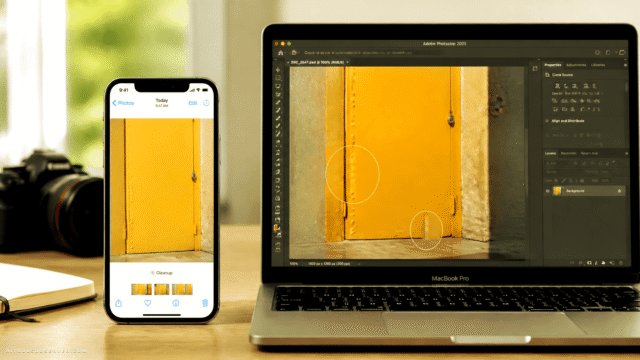
Fast — Uses a smaller AI model. Quicker results, lower battery drain. Works well for straightforward edits: removing a trash can from a landscape, hiding street-level wiring, cleaning up simple backgrounds.
High Quality — The heavier model. Takes longer and uses more battery, but handles complex scenes better — like removing a crowd of people from behind a selfie. This is where iOS 27 makes the biggest leap over previous versions.
Selecting What to Remove
Clean Up will try to auto-detect objects worth removing. It doesn’t always get this right. For more accurate results, manually circle the object you want gone rather than relying on automatic detection.
Extend: When Your Photo Is Too Tight
Extend is a new feature in iOS 27 that uses AI to expand the edges of a photo — useful when a shot is too zoomed in or poorly framed.
To use it, open a photo in Edit mode and look for the Extend option. Then pinch to zoom out. The AI fills in the surrounding area based on what’s already in the image.
Results take a moment to generate. For photos with consistent, predictable backgrounds — sky, walls, grass — Extend tends to perform well. More complex scenes are less reliable.
Reframe: Fixing the Angle After the Fact
Reframe goes a step further: it changes the perspective or angle of a photo without retaking it. Looking away from the camera? Reframe can adjust that.
The honest assessment: results are inconsistent. Some photos come out looking natural. Others produce obvious AI artifacts — hallucinated objects, distorted faces, or people who weren’t in the original shot. It’s worth trying on a photo you’d otherwise discard, but don’t expect miracles.
The Practical Takeaway
Clean Up in iOS 27 is a genuine step up — especially the High Quality mode, which finally handles the kind of edits that used to require a third-party app. Extend is quietly useful for rescuing poorly framed shots. Reframe is experimental at best.
If you’re on an iPhone 15 Pro or later and haven’t enabled Apple Intelligence yet, this is a solid reason to do it. And if Reframe hands you back something that looks like a fever dream, just hit undo — the original is always one tap away.











Comments (0) No comments yet
Want to join this discussion? Login or Register.
No comments yet. Be the first to share your thoughts!