


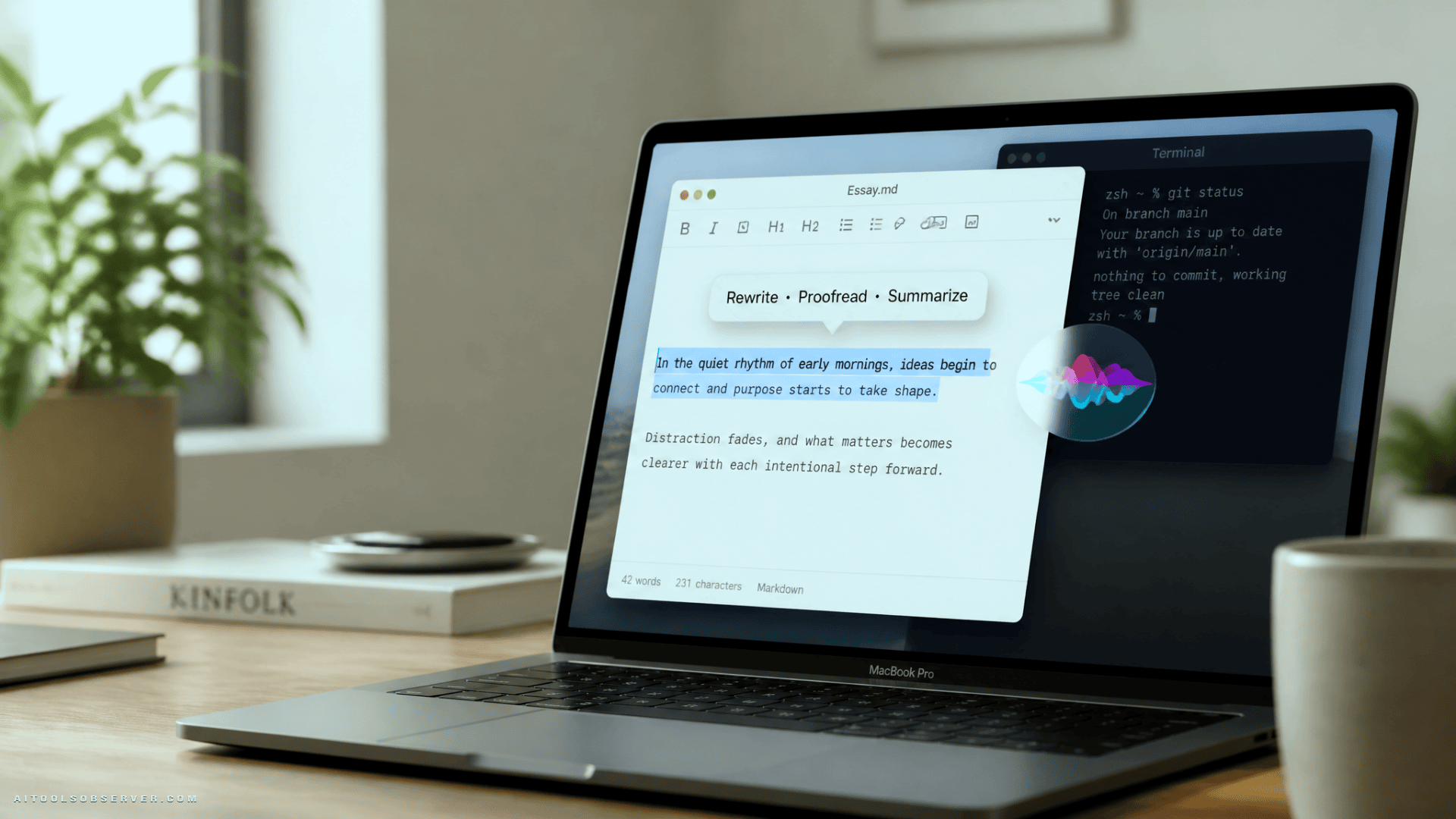
The context-aware actions are the bigger story
The writing tools are the obvious headline, but the contextual actions may be even more useful over time.
According to the description, the interface can also adapt based on what you select. Examples include:
- Phone numbers with an option to add to contacts
- Addresses with an option to open in Maps
- Actions related to calendar events
- Tools for composing messages and emails
- Flight and package tracking options
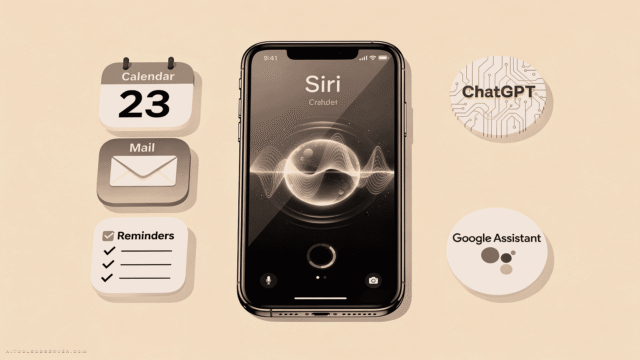
That points to a broader assistant layer, not just a rewrite menu. In other words, Siri AI on Mac may be positioned as both a writing helper and an action engine for everyday tasks.
Why Apple likely hid it
The simplest explanation is that it’s not ready.
Reports around the feature suggest it’s still unfinished in the macOS 27 Golden Gate beta. Some options reportedly do not work as intended, and some may not work at all.
That means you should treat this as a beta experiment, not a dependable productivity feature. If you want stable tools for real work, this may not be there yet.
Before you enable it
This is the part where caution matters more than curiosity.
Turning the hidden interface on requires Terminal and changes a macOS feature flag. If you’re comfortable testing beta software, that may be fine. If you rely on your Mac for critical work, think twice before changing system-level settings.
A few practical points:
- Use a beta device, not your only production machine
- Expect bugs or inconsistent behavior
- Restarting is required after changing the setting
- Be ready to disable it if it causes issues
If you are not comfortable using Terminal with administrative privileges, skip this for now.
How to use it once it’s on
After restart, try the feature in places where you can select text.
A simple test workflow:
- Open a document, note, or text field
- Highlight a sentence or paragraph
- Look for the Siri AI pop-up or related writing tools
- Try actions like Rewrite, Proofread, or Summarize
You can also test context-aware selections:
- Highlight a phone number
- Highlight an address
- Select text that could become a calendar event
- Try content that looks like an email or message draft
Because this appears to be unfinished, your experience may vary from app to app.
How to turn it off
If the interface feels broken, distracting, or unstable, you can disable it the same way.
Open Terminal and run:
sudo defaults write /Library/Preferences/FeatureFlags/Domain/WritingTools LightweightUI_macOS -dict Enabled -bool falseThen restart your Mac again.
That should revert the feature flag and turn the hidden interface off.
What these Siri writing tools are actually useful for
If the feature works on your setup, the most practical uses are straightforward.
Rewrite rough drafts
Use it to clean up awkward sentences, simplify internal notes, or polish an email before sending.
Proofread fast
This is useful when you want a quick grammar and clarity pass without moving text into another tool.
Summarize long text
If you’re reviewing meeting notes, support tickets, research snippets, or dense email threads, summaries and bullet points can save time.
Turn selections into action items
The context-aware options could be helpful when selected text naturally maps to a real task, like adding contact details or opening an address in Maps.
Tradeoffs to keep in mind
Built-in convenience is appealing, but there are tradeoffs.
First, unfinished features can break your workflow. A hidden beta tool is not the same as a polished release.
Second, built-in tools are usually best for quick edits, not deep content work. If you need heavy rewriting, long-form generation, or advanced collaboration, dedicated AI writing tools may still be better.
Third, context-aware features only help if they work reliably across apps. That’s something beta testers will likely be feeling out.
Who should try this now
This hidden Siri interface makes the most sense for a narrow group of users right now:
- Developers and beta testers
- Mac power users comfortable with Terminal
- Writers and marketers curious about Apple’s native AI direction
- Anyone testing how built-in AI compares with standalone writing tools
If you just want a dependable AI assistant today, waiting for a more complete release may be the smarter move.
What this suggests about Apple’s AI direction
The most interesting part is not the hidden menu itself. It’s the product direction behind it.
Apple appears to be experimenting with AI that feels native to the operating system: contextual, lightweight, and triggered by what you’re already doing. That’s different from the “open chat, paste prompt, get output” model many users are used to.
If that approach sticks, Siri on Mac could become more useful through small, fast actions than through big assistant theatrics. For more on Apple’s AI direction, see the broader WWDC strategy.
The practical takeaway
If you’re already on the macOS 27 beta and like testing unfinished features, this hidden Siri AI interface is worth exploring carefully. The writing tools alone could be handy, and the contextual actions hint at a broader assistant layer Apple may be building.
Just keep your expectations realistic. Turn it on if you want to experiment, not if you need reliability.














Comments (0) No comments yet
Want to join this discussion? Login or Register.
No comments yet. Be the first to share your thoughts!